How to Create a Separate Livestream Mix on the Behringer X32

By Nikki
October 3, 2026 · 5 min read
Somebody messages during the stream: "Great service, but we can barely hear the pastor over the band." In the room it sounded fine. That gap is the whole problem. The people watching from home might be a shut-in, a family traveling, or a visitor deciding whether your church is worth a Sunday morning. They're getting whatever mix you hand them, so hand them one you built for them.
The fix is a separate stream mix on its own bus. On an X32 it takes about ten minutes to set up, and you only do it once.
Why the house mix makes a bad stream mix
In the room, the drums and guitar amps are already loud on their own. The mics barely need to add them. Through the stream, there is no room, so the same mix comes out with the band buried and the speech thin, or with the band loud because someone turned it up for the room. A stream mix needs speech and vocals forward and the loud stage instruments pulled way back. The livestream audio vs. house sound post goes deeper on why. This post is the how.
What you need
Two things. A free mix bus on the X32, and a way to get that bus to your streaming computer. That means either an X-USB expansion card in the back of the board, or an analog output going into a USB audio interface. Use whichever your board and setup already have.
Step 1: Pick and name a bus
Choose a mix bus you aren't using for monitors. A high number like 15 and 16 is a common choice, since monitor mixes tend to use the low ones. Name it "STREAM" so a volunteer who didn't set it up knows what it is. For a stereo stream, link two buses as a pair. If your stream is mono, one bus is fine.
Step 2: Route the bus to your output
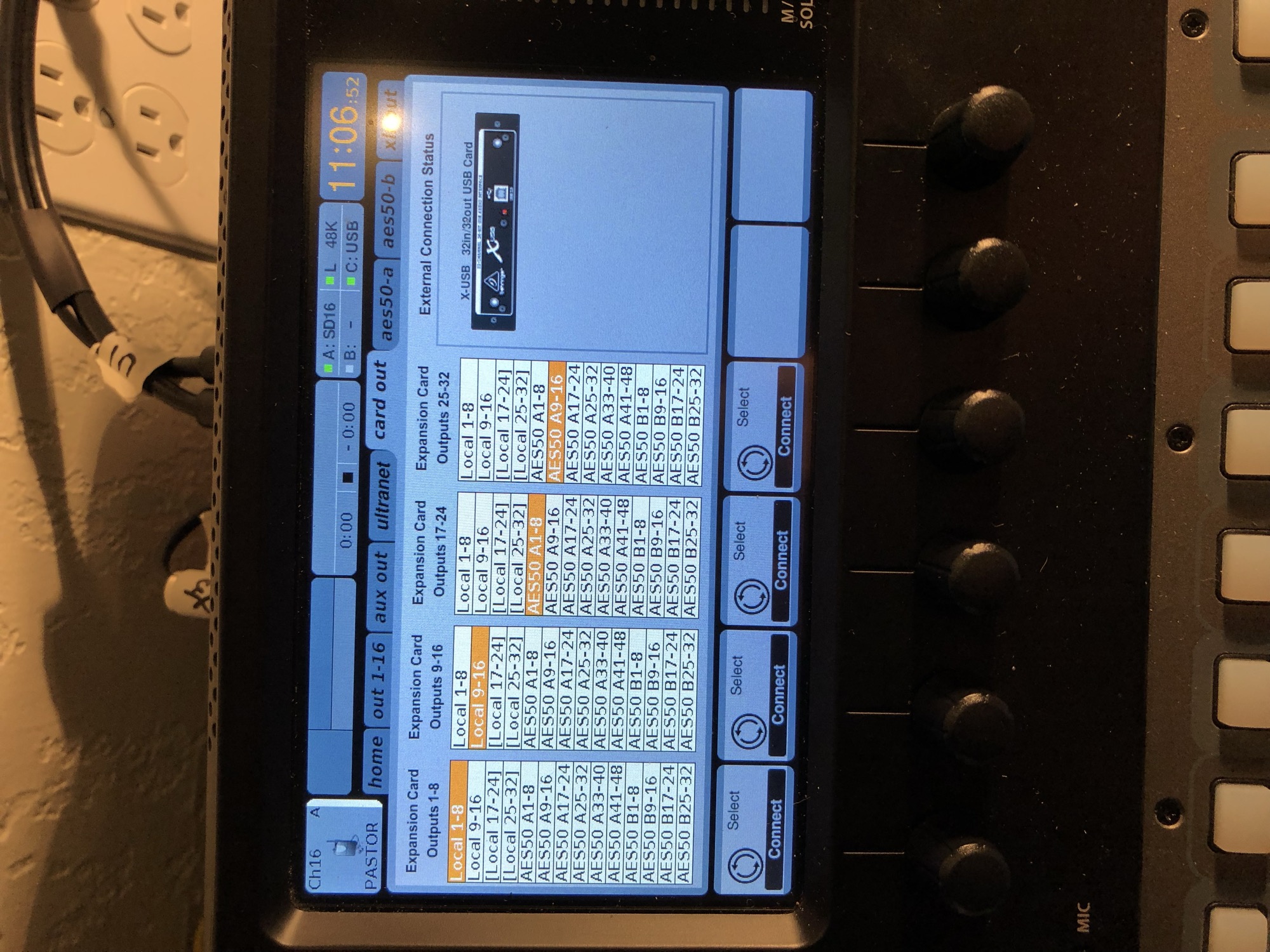
Go to the Routing screen. If you're using the X-USB card, open the Card Out tab and assign the STREAM bus (or the linked pair) to the card outputs your computer will see as channels 1 and 2. If you're going analog, use the Aux Out or an XLR output and assign the bus there. This is the same routing screen the X32 and Wing routing basics post walks through.
Step 3: Send channels to the bus
Select a channel and open its Sends tab. Turn up the STREAM bus send. To build the whole mix quickly, use Sends on Fader: select the STREAM bus and your channel faders become the stream mix while it's active. Start with the pastor's mic and the vocals at the level you want people at home to hear, then bring the band up underneath. Keep loud stage sources like drums and guitar amps low. They're already coming in through every other mic.
Step 4: Set the tap point to pre-fader
On the Sends tab, each bus send has a tap point, the spot in the channel where the signal is copied off. Set the STREAM bus to Pre Fader. That way, when someone in the booth pulls a guitar down for the room, your stream mix doesn't change with it. Post Fader would tie the stream to every house fader move, which is the exact problem you're trying to escape. Test what your channel mutes do to the stream too, so a muted mic doesn't surprise you live.
Step 5: Add a little color to the bus
Now treat the bus itself. Use the bus EQ to cut below about 80 Hz, since phone speakers and earbuds can't use it anyway. Add gentle compression on the bus to even things out, and a limiter to catch peaks. A burst of laughter or a loud amen from the congregation can spike hard, and a limiter keeps that from clipping the stream.
Watch the bus meter. Aim for peaks around -6 dB. Then check your encoder's meter too. In OBS, peaks around -12 to -6 dB is a healthy place to sit, and never let it hit red.
Step 6: Add a little room back
Studio dry audio sounds odd for a church service. Bring in an ambient or audience mic at a low level so people at home hear the room. It makes the stream feel like a service instead of a phone call.
Step 7: Listen to the stream, not just the board
Solo the STREAM bus in your headphones to hear the mix on its own. Then check the real stream on a phone using cell data, with earbuds, after the delay catches up. That's what a viewer hears. If lips and voice don't match, the sync fix post covers it.
Save it so it survives next Sunday
Save the whole setup as a scene, and write the bus number, the routing and the tap point on your Sunday run sheet. If you're out sick, the next person shouldn't have to rebuild it.
Working on the streaming side next? Read OBS for church, or see the full small church livestream guide and the small church sound guide.
Want a pre-service routine that catches this before doors open? Grab the free Sunday Checklist. And drop a comment with which X32 you're running and how the stream gets to your computer. That helps pick the next post.
Keep reading
New to Sound? Start with Small Church Sound: Where to Start.
Stay in the loop
No spam. Pick what you want to hear about and unsubscribe any time.
Comments
Be the first to leave a comment.